How to see who unfollowed you on Instagram without an app
Last Updated on February 15, 2026 by Ethan
You can see who unfollowed you on Instagram without an app by exporting your Followers list directly from Instagram, then comparing it to an older export. It’s the cleanest option in 2026 because it uses Instagram’s own data, not some third-party tracker guessing off partial signals.
If you’re trying to “see who unfollowed you without an app,” you’ve basically got two real choices: (1) Instagram’s data export + a quick comparison, or (2) manual spot-checking inside the app (fine for tiny accounts, miserable for anything bigger).
I’ll walk you through the export method I actually use, the “why” behind it, where it breaks, and the mistakes I keep seeing people make when they’re frustrated and just wanna know who dipped.
TL;DR: To see who unfollowed you on Instagram without using an app, export your Followers list directly from Instagram and compare it to an older list. It’s usually pretty solid because it’s straight from Instagram, not some third-party tracker that’s guessing or missing stuff. Honestly, checking once a week tends to be the sweet spot, daily checks can mess with your head for no real reason.
Why “no app” unfollower tracking got harder (and why exports still work)
Back in the day, a lot of unfollower trackers worked by plugging into Instagram’s ecosystem more directly. That era is pretty much over. Instagram tightened access, and the tools that still “work” often do it in ways that are… let’s say, creative.
Here’s the thing: when you avoid apps, you’re avoiding two headaches at once. One is security (handing your login to random tools). The other is accuracy. Many trackers can only approximate follower changes, especially when Instagram rate-limits what can be fetched and when.
Instagram’s export works because it’s first-party. You’re pulling your own followers/following data from the source. And yes, it’s a little annoying that it comes as files, but it’s reliable.
How it works (the simple mechanism)
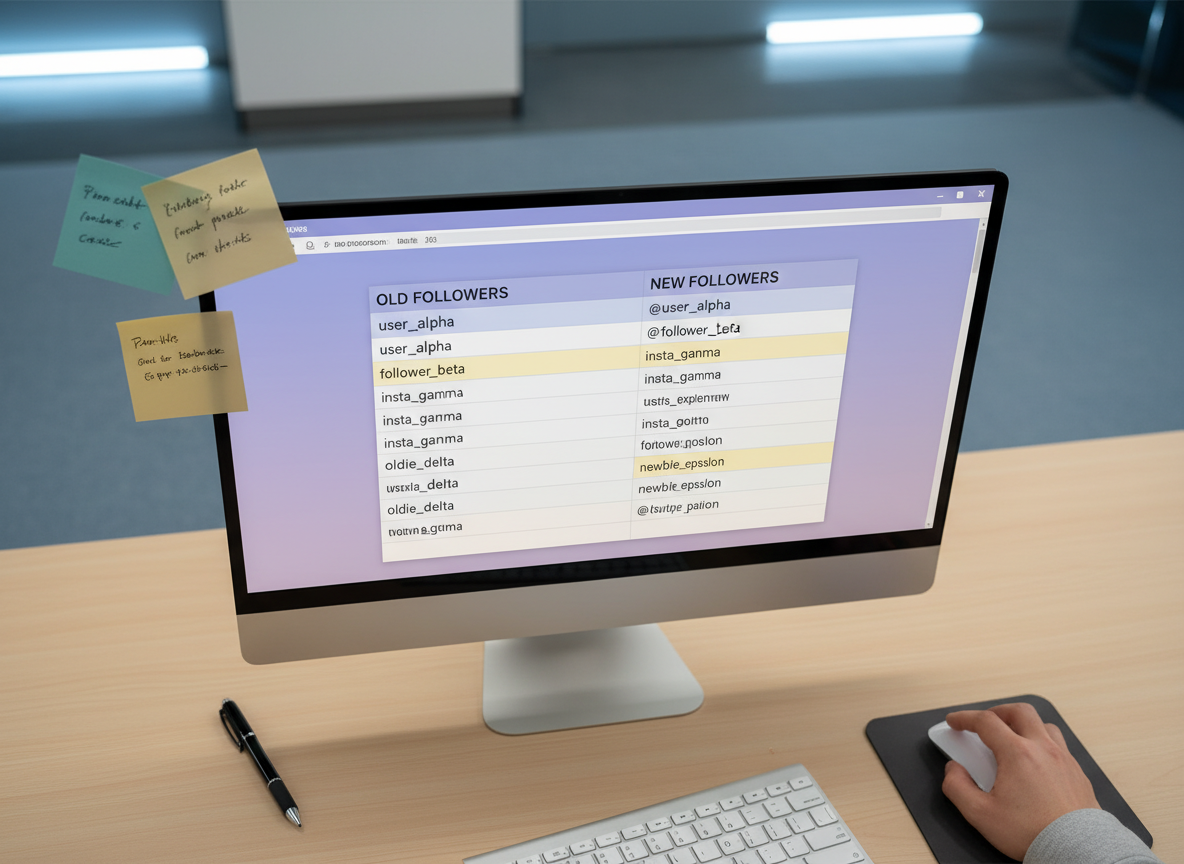
The export method is basically “take two snapshots and compare.” Instagram gives you a list of accounts that followed you at the time of export. If they’re on the old list but they don’t show up on the new one, yeah, they unfollowed at some point between those two exports.
Weirdly enough, checking all the time doesn’t usually make you feel better; it kinda does the opposite. Daily checks turn normal churn into a personal soap opera. Weekly is the sweet spot for most people, unless you’re running promos or you’re mid-drama (been there, not proud).
If you want more context on why follower counts can move while lists lag or look weird, read why Instagram follower counts and follower lists don’t always match. That mismatch is where a lot of confusion starts.
The best method in 2026: Instagram’s official “Download Your Information” export
I’ve tested this across creator accounts, small business pages, and a couple personal accounts I use for tool testing. It’s the one method that keeps working even when Instagram changes stuff, because it’s literally Instagram handing you your own connections data.
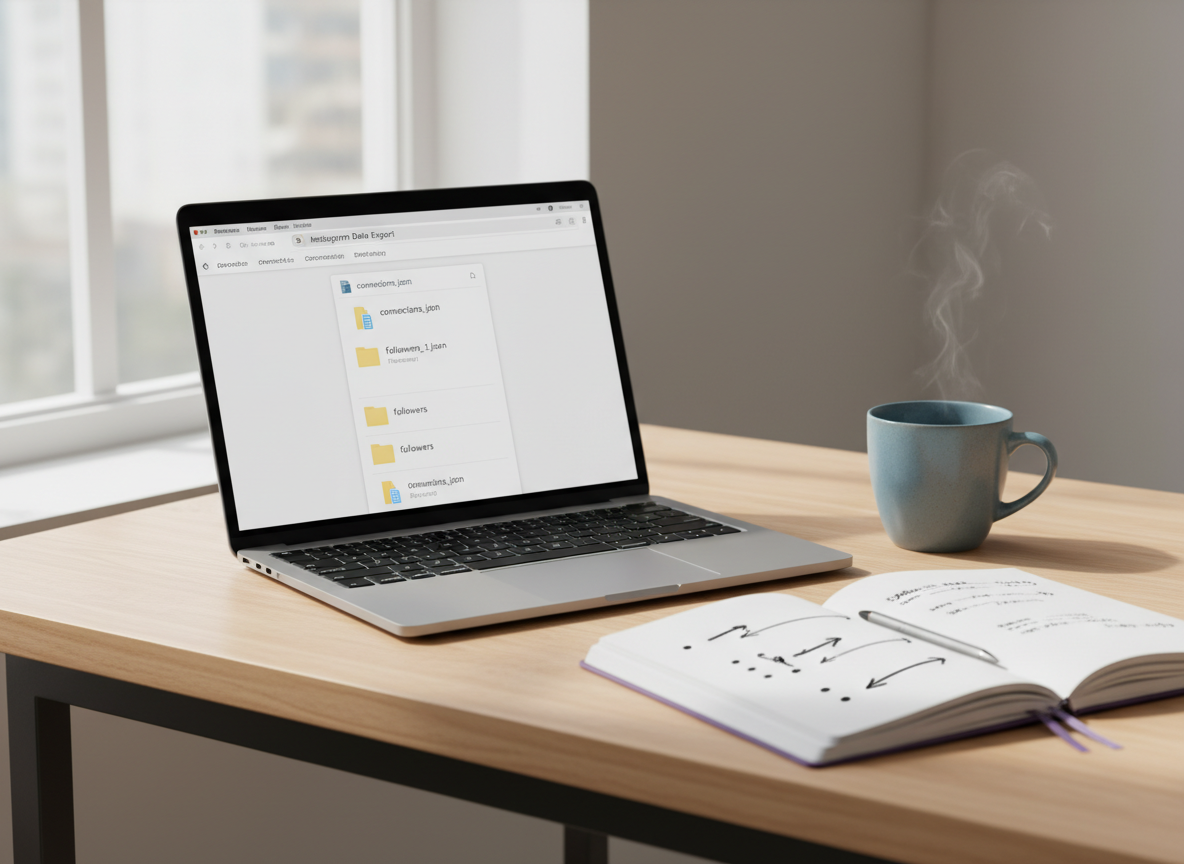
Step-by-step: request your Followers export
- Open Instagram and go to your profile.
- Tap the menu (three lines), then go to Accounts Center.
- Go to Your information and permissions → Download your information.
- Choose the account (if you have multiple) and select only what you need: Connections → Followers and Following.
- Pick a date range (I usually do the last 30 days if I’m trying to catch a campaign effect).
- Request the download. Instagram emails you a ZIP file (timing varies).
Lived detail: on smaller accounts (under ~2k followers), I usually get the download in minutes to an hour. On bigger accounts, it can take noticeably longer, and I’ve had it show “in progress” for half a day during high-traffic times.
What files are you looking for inside the ZIP?
Instagram typically gives you JSON files for connections. You’ll probably see folders labeled things like Followers and Following ZIP, and in most cases, it’s tucked inside something called “connections.”
And yeah, try not to spiral on it. Look, all you’re doing is grabbing a list of usernames from two different dates so you can see what changed.
How to compare the two exports (fast, not fancy)
You need two exports:
- Old snapshot (last week/month)
- New snapshot (today)
Then compare them using a spreadsheet:
- Convert the JSON to a simple column of usernames (many people paste into Google Sheets after formatting, or use a JSON-to-CSV converter).
- Put Old Followers in Column A and New Followers in Column B.
- Use a lookup to find names that exist in A but not in B (that’s your unfollow list).
If you’re Excel-ish, VLOOKUP/XLOOKUP works. If you’re not, a “Remove duplicates” approach also works: combine lists, mark duplicates, and filter the uniques. Ugly, but it gets the job done.
Lived detail: if you export too close together (like within the same hour), the “unfollows” you think you found are often just timing noise because Instagram’s list data doesn’t always refresh in perfect sync. Waiting a day between snapshots reduces false alarms a lot.
The “manual” method inside Instagram (only for small lists)
If you’re determined to see who unfollowed you without an app and you don’t wanna mess with exports, you can manually check. It’s just… slow.
Manual spot-checking (the least painful version)
- Go to your Followers list and search for the person’s username.
- If they don’t appear, go to their profile and check if the “Follow back” / “Following” state changed.
- Repeat for each person you suspect.
Honestly, this is where most people mess up: they try to “scan the list” by scrolling. That works until it doesn’t. Once your follower list gets big, you’ll lose your place, the app refreshes, and you start second-guessing yourself. Brutal.
If you want a real comparison of what manual checking looks like versus tools that automate the comparison step, I broke it down here: manual vs automated Instagram tracking pros and cons.
Failure modes: when the export method gets weird
This approach is solid, but it’s not magic.
- It falls apart for the “who unfollowed me today” obsession. Exports aren’t instant, and Instagram can delay the download. If you need minute-by-minute changes, you’re gonna be disappointed.
- Usernames can change. If someone changed their handle between snapshots, your comparison might flag them as an unfollow when they didn’t. It’s rare, but I’ve seen it happen on creator accounts that rebrand a lot.
Also: if you’re hoping this tells you why they unfollowed… yeah, no. It only tells you that the connection is gone, not the reason.
Common mistakes I see (and yep, I’ve done some of these)
I used to chase unfollows way too hard. Like “refresh-refresh-refresh” hard. It didn’t make me better at Instagram. It just made me anxious. So here’s the stuff that actually causes problems when people try to see who unfollowed you without an app:
- Requesting the full archive instead of just Connections. You end up waiting longer and downloading way more than you need.
- Not keeping a baseline snapshot. If you don’t have an older export, you can’t compare anything. Take one today, label it, and future-you will thank you.
- Using the wrong comparison field. Compare usernames consistently. Don’t mix display names and usernames (display names are not unique).
- Mass unfollowing after you find “non-followers.” Instagram action limits are real. If you go on a spree, you’ll hit friction fast. Actually, I’ve watched people trigger temporary blocks from doing too much too quickly, then blame the export method. Nope. That’s the platform protecting itself.
And if you’re wondering whether Instagram tells someone you noticed the unfollow, it doesn’t. But people still worry about it constantly. These two quick reads clear it up: does Instagram notify when someone unfollows you, and why there are no Instagram unfollow notifications.
So… are third-party unfollow trackers “apps” and are they risky?
When people say “without an app,” they usually mean “I don’t want to install something sketchy and hand over my password.” Fair.
A lot of popular lists still round up unfollower trackers, but the safety and compliance side is messy. If you want a feel for what’s commonly recommended (and what the market looks like), you can skim roundups like this overview of unfollower tracker apps.
My rule from experience: if a tool asks for your Instagram password, I’m out. Immediately. I’ve seen too many “it worked fine for months” stories end with a login alert, a locked account, or weird follows/likes the user swears they didn’t do. Weird.
Limitations (read this before you go full detective)
- This won’t give you instant alerts. Data exports are snapshots, not push notifications.
- This doesn’t work well for private accounts you can’t access. You can export your own data, but you can’t reliably “audit” other private accounts without access.
- This won’t catch temporary deactivations cleanly. If someone deactivates and later returns, your snapshots might show them as “gone” in between, even if they didn’t intentionally unfollow.
One more honest caveat: if you’re doing this because you feel stressed about your numbers, consider checking less often. I know that sounds like non-advice, but it’s real. The data can be useful, or it can mess with your head. Your call.
How UnfollowGram Follower Tracker helps with unfollow checks (without the sketchy login stuff)
Even though this page is about how to see who unfollowed you on Instagram without an app, people usually end up here because they want the result (a clean unfollower list) without the security risk. That’s basically why tools like UnfollowGram exist.

I’ve used a no-password Instagram unfollower checker like UnfollowGram when I needed a quick read on public accounts and didn’t feel like exporting and cleaning JSON files again (especially when I’m on my laptop with ten tabs open and zero patience). You type a username, you get the high-signal views: who unfollowed, who doesn’t follow back, and recent follower changes, without handing over your Instagram login.
And yeah, it has boundaries. It works with public accounts, and it’s not the same thing as Instagram’s private internal data export for every edge case. If you want the deepest “this is the official record” snapshot, exports are still the gold standard. If you want speed and convenience without password drama, UnfollowGram is the middle ground that’s actually usable day-to-day.
If you’re curious how trackers even detect unfollowers in the first place (and why so many got flaky after platform changes), this breakdown is worth reading: how Instagram unfollower trackers detect changes.
FAQ
How to manually check who unfollowed you?
Search their username in your Followers list; if they don’t show up, visit their profile and confirm you’re not marked as followed anymore. This is doable for a few names, but it gets painful once your lists are large.
Are unfollow trackers free?
Some are free (or freemium), but many lock the useful stuff behind paywalls, add limits, or push risky login-based connections. “Free” also doesn’t mean “safe,” so check what access they ask for.
Can you see who unfollowed you on Instagram directly?
No, Instagram doesn’t show a native “unfollowed you” feed; the closest official method is exporting your Followers data and comparing snapshots.
How often should I export Instagram data to track unfollows?
Weekly is the best balance for most people; daily exports can create noisy comparisons, while monthly exports can miss patterns you actually care about.
Will someone know I checked if they unfollowed me?
No, Instagram doesn’t notify users when you search for them, check their profiles, or compare follower lists.
Conclusion
If you want to see who unfollowed you without an app, Instagram’s data export is the most reliable way in 2026: grab a Followers snapshot, save it, then compare it to your next snapshot to spot who disappeared. Manual checking works in a pinch, but it doesn’t scale, and it drives people a little nuts (ask me how I know).
And if you want the quick, everyday version for public accounts without handing over your password, use a tool built for that purpose, not a random login-hungry tracker. That’s the whole point of staying safe while still getting answers.

Ethan is the founder of UnfollowGram with more than 12 years of experience in social media marketing. He focuses on understanding how Instagram really works, from follower behavior to engagement patterns, and shares those insights through UnfollowGram’s tools and articles.